Finding Your Way Around the Graph
What you'll take away
- A graph only earns its keep when you can move through it — a picture you can't traverse is just a prettier list.
- Three moves cover almost everything: search to a starting point, expand a neighborhood, and trace a path between two things.
- Drilling into any entity opens its detail panel — its attributes and every connection it has — which is where most real answers live.
- The payoff move is the path: surfacing a connection between two things — direct or many steps deep — that no single document ever states outright.
A familiar analogy
Think about how you actually use a map app. You almost never stare at the whole city. You search for one place to anchor yourself, you look at what's around it — what's nearby, what it connects to — and when you have a destination in mind, you ask for the route between here and there. Three moves: locate, look around, route. A map that only let you admire the whole sprawl at once, with no search and no routing, would be useless for getting anywhere.
A knowledge graph is navigated the same three ways, and for the same reason. The full graph of a real business is a hairball — hundreds of dots, too many to read. Value doesn't come from admiring the hairball. It comes from locating a thing you care about, looking around its neighborhood, and routing between two things to see how they connect.
The mechanic: locate, look around, route
Locate — the Explorer. The Graph tab opens on the Explorer, where you search and filter your way to a starting point instead of trying to read everything. In the demo workspace, searching for the customer hub, "Northwind Co.," drops you right onto it with its immediate connections fanning out — contracts, contacts, the product, the supplier. Filters and a density control let you thin a busy view down to just the types you care about.
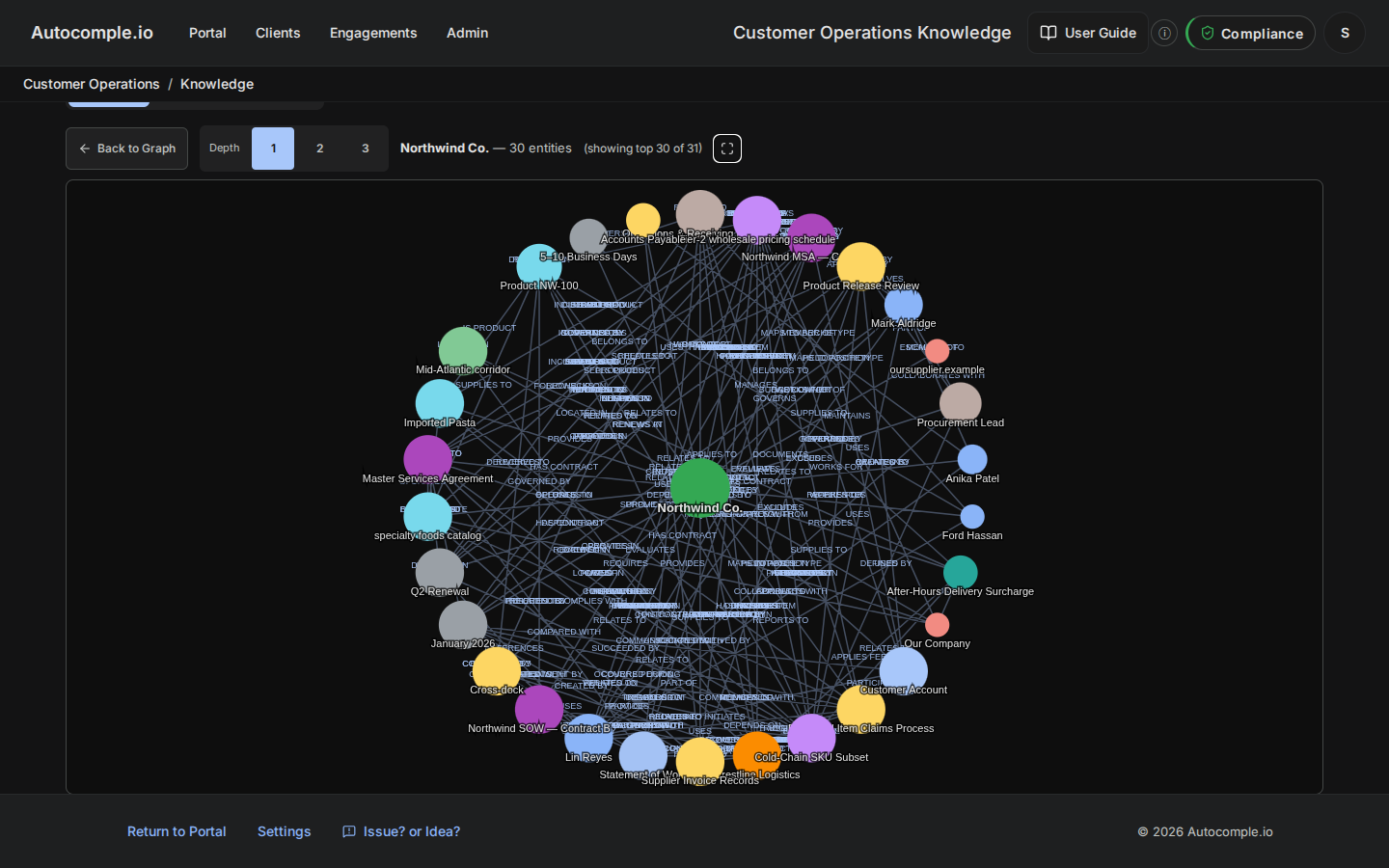
Look around — the detail panel. Click any node and its detail panel opens. This is the single most useful surface in the Graph tab, and it has two halves. The top half is the entity's attributes — the type, confidence, source count, first-seen, and aliases you met in Unit 01. The bottom half is every relationship it has: each connection labeled with its type ("supplies to," "reports to," "has contract") and linking to the thing on the other end, which you can click straight through to. Looking around a neighborhood is just clicking from one detail panel to the next, following the connections that interest you.
This is also where relationship properties show up when documents carry them. A has-skill connection with a proficiency level renders as a star rating right in the panel — the filterable detail from Unit 01, made visible at the point you'd actually use it.
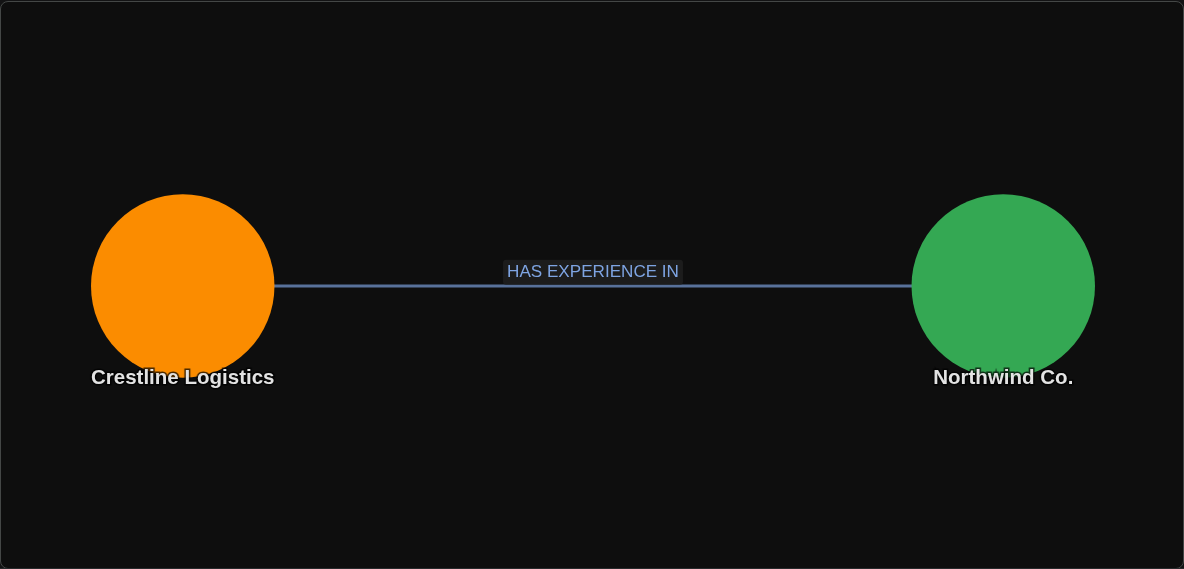
Route — the Path-Finder. The move that makes a graph feel like magic is asking it to connect two things. Pick a start and an end, and the Path-Finder traces the route between them — even when no single document ever put those two things in the same sentence. In the demo, you can ask how the supplier "Crestline Logistics" connects to the customer "Northwind Co." and watch it draw the link: the graph surfaces a direct relationship between the two, labeled with how they're related, without you opening a single file. That edge was never written as one sentence anywhere — it was inferred from the documents and laid out for you to see at a glance.
The mental model
Locate, look around, route. The Explorer is your "search the map." The detail panel is your "look at what's nearby." The Path-Finder is your "give me the route." If you ever feel lost in a graph, you've almost certainly skipped the first move — you're trying to read the whole city instead of anchoring on one place and working outward.
The path move is the one to internalize, because it's the thing a graph does that a pile of documents and a search box cannot. A keyword search can find every document that mentions "Crestline." Only a graph can tell you how Crestline reaches your biggest customer — sometimes as a single direct link, sometimes as a chain through several intermediaries — because the answer was never written down in one place. It was distributed across your documents, and the graph stitched it together. The further apart two things sit, the more this matters: a relationship buried four hops deep is one no human would ever find by reading, and exactly the kind the route move surfaces in a glance.
The quiet payoff
Operators who get comfortable with these three moves stop thinking of the knowledge base as "a place documents go" and start thinking of it as "a thing I can ask structural questions of" — who connects to whom, through what, and how far apart are they really. That shift is when the graph goes from a feature you were sold to a tool you reach for. But a graph you trust enough to route through is a graph somebody maintained — which is the next, and most ongoing, part of the job.